LEGAL NOTICE: This content is intended exclusively for educational, documentation, and research purposes. The analysis presented was performed only on a configuration file that I was authorized to export and on publicly available information and tools. No unauthorized access was performed, no configuration or service plan was altered, and no action was taken with the intent to cause damage, obtain an unfair advantage, or compromise third-party systems. The content is presented for documentation and technical awareness purposes and does not constitute encouragement or guidance for unauthorized access to systems, networks, or accounts. If you are responsible for any content, information, or resource mentioned in this article and would like to request its removal, deactivation, or modification, please send your request to: [email protected]
Where It All Started
I bought an Intelbras R1 ONU to normally clone the information from the Huawei GPON router that Tim (my ISP) installed, and I failed because the modem did not have a web configuration panel, only the URL http://192.168.1.1/tim_wizard.asp, which only has basic Wi-Fi configuration and a network connection test. Interestingly, if you enter the network connection test without the fiber cable connected, it will show a hyperlink to advanced settings, leading to http://192.168.1.1/index.asp
The Web Panel
And finally I gained access to a standard router panel, with port forwarding and fairly normal functions, which Tim for some reason hid in the directory /index.asp
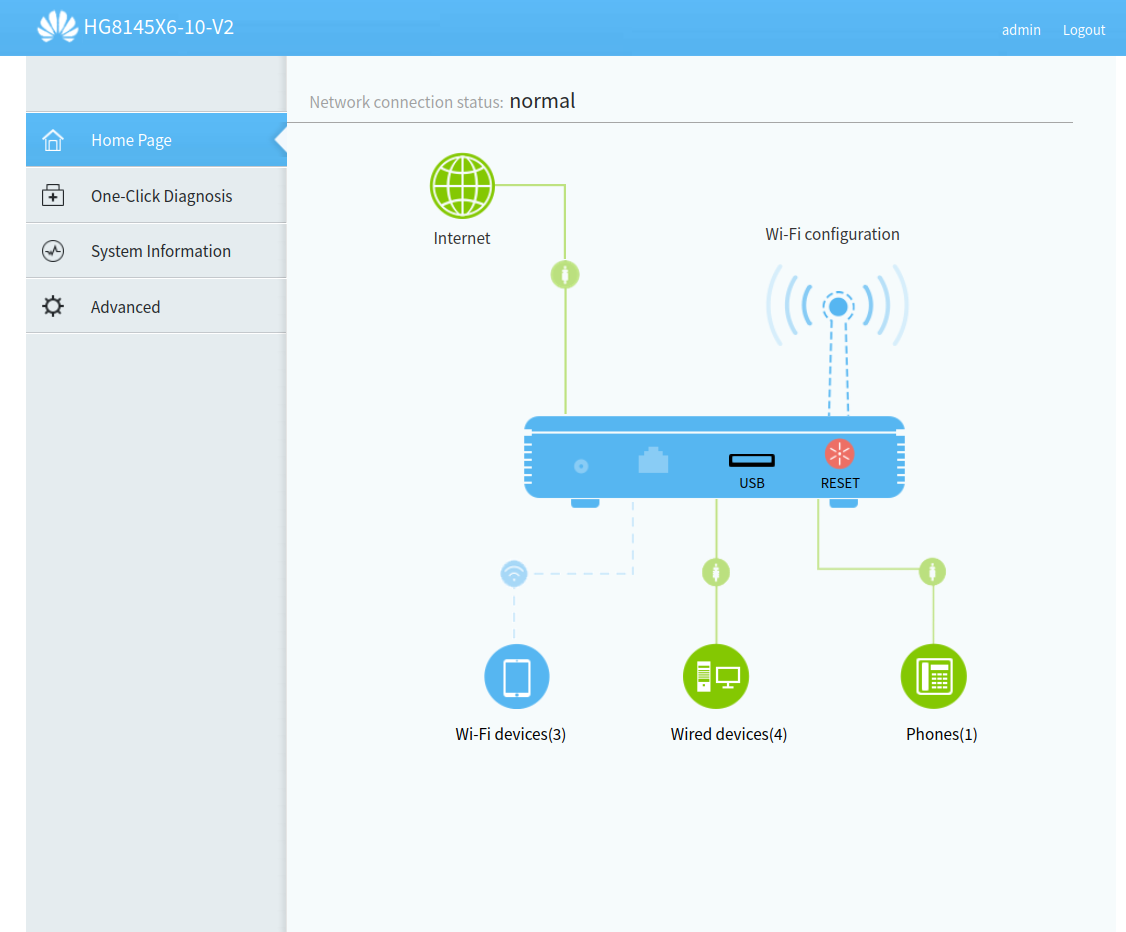
And there, in the "Advanced" > "Maintenance Diagnosis" section, I gained access to "Configuration File Management", where I can export and import configuration files. However, I did not think much of it, since the modem at my old Tim address, the Blu-Castle BCSKV630, had an encrypted file, but to my surprise it was a plain XML file! With this in hand, I looked for something I already knew from investigating the Blu-Castle's requests: Tim's engineering user, something universal in Tim's proprietary firmware, the user L1vt1m4eng. And, to no one's surprise, it was there:
<X_HW_WebUserInfoInstance InstanceID="2" UserName="L1vt1m4eng" Password="CESNURADO"
UserLevel="0" Enable="1" ModifyPasswordFlag="0" FactoryPassword="CESNURADO"
Salt="CERNSURADO" PassMode="3" Alias="cpe-2">
<X_HW_IteratePassword Password="CENSURADO" Salt="CENSURADO" IterateCount="10000"
HashType="0"/>
</X_HW_WebUserInfoInstance>
With this in hand, I took the tag FactoryPassword="CESNURADO" and entered it into a very interesting website made by people smarter than me: the Huawei Password Utility, made by andreluis034. Entering the string, which looks something like this: $2#L0D,H{Mg%"4x`LbVbODad][2e*nh-Z]ZW!B6X=U$ (in this case it returns AZULRE), it returned a password for this account, and entering it at the login worked!
Logging In and Modifying the Configuration File
Okay, we have the login for the root-equivalent account; let's enable SSH/Telnet. Since there is no option for this in the interface, I did something bold: I tried manually editing the configuration file to enable both, and in the section <X_HW_LocalAccess Enable="1" Port="80,443" Protocol="HTTP,HTTPS" SupportedProtocols="HTTP,HTTPS,TELNET,FTP"/>, I edited the line to <X_HW_LocalAccess Enable="1" Port="80,443,23" Protocol="HTTP,HTTPS,TELNET" SupportedProtocols="HTTP,HTTPS,
TELNET,FTP"/>, I went into the settings and uploaded the file, the router rebooted, and when I tried to log in, it worked! Using L1vt1m4eng and the same decoded password, I was able to access...
WAP>No BusyBox?
The Most BARE-BONES SSH I've Ever Seen!
WAP? Yes, Wireless Access Point, a type of proprietary SSH session from Huawei, but we have access to several interesting things: pressing ? it lists all commands, most of which are self-explanatory. Here's an example:
WAP>display cpu info

                processor       : 0
                model name      : ARMv7 Processor rev 1 (v7l)
                BogoMIPS        : 1594.16
                Features        : half thumb fastmult edsp thumbee tls
                CPU implementer : 0x41
                CPU architecture: 7
                CPU variant     : 0x4
                CPU part        : 0xc09
                CPU revision    : 1
                CPU physical    : 0

                processor       : 1
                model name      : ARMv7 Processor rev 1 (v7l)
                BogoMIPS        : 1594.16
                Features        : half thumb fastmult edsp thumbee tls
                CPU implementer : 0x41
                CPU architecture: 7
                CPU variant     : 0x4
                CPU part        : 0xc09
                CPU revision    : 1
                CPU physical    : 1

                Hardware        : Hisilicon A9
                Revision        : 0000
                Serial          : 0000000000000000


success!
WAP>
However, one caught my attention, namely su, and when typing:
WAP>su
success!
SU_WAP>
Wait, is that it? Do I have sudo on the superadmin login? Okay, let's list the commands to see if anything changed:
[...]
shell
[...]
WHOA! Could it finally be—
SU_WAP>shell

BusyBox v1.34.1 () built-in shell (ash)
Enter 'help' for a list of built-in commands.

profile close core dump
WAP(Dopra Linux) # ?
exit
getcustominfo.sh
WAP(Dopra Linux) #
No. Just no. Jokes aside: we have BusyBox! Even though it is highly limited and... Dopra Linux? Yes, it is a proprietary Linux system for Huawei WAP devices, which is quite interesting. Other than that, the shell has nothing besides the .sh file that shows the original software version flashed onto it and the original password for L1vt1m4eng, and the WAP> is just a CLI version of the web interface, with a few additional settings, but nothing extraordinary that I saw.
Final Thoughts
This rabbit hole was really fun and interesting, and I hope it helps someone someday. See you next time, dear readers!